eSIM installed but no data after arrival? Check this order
No data after landing does not prove the eSIM is faulty: verify the plan and destination, then check routing, roaming and network registration in order.
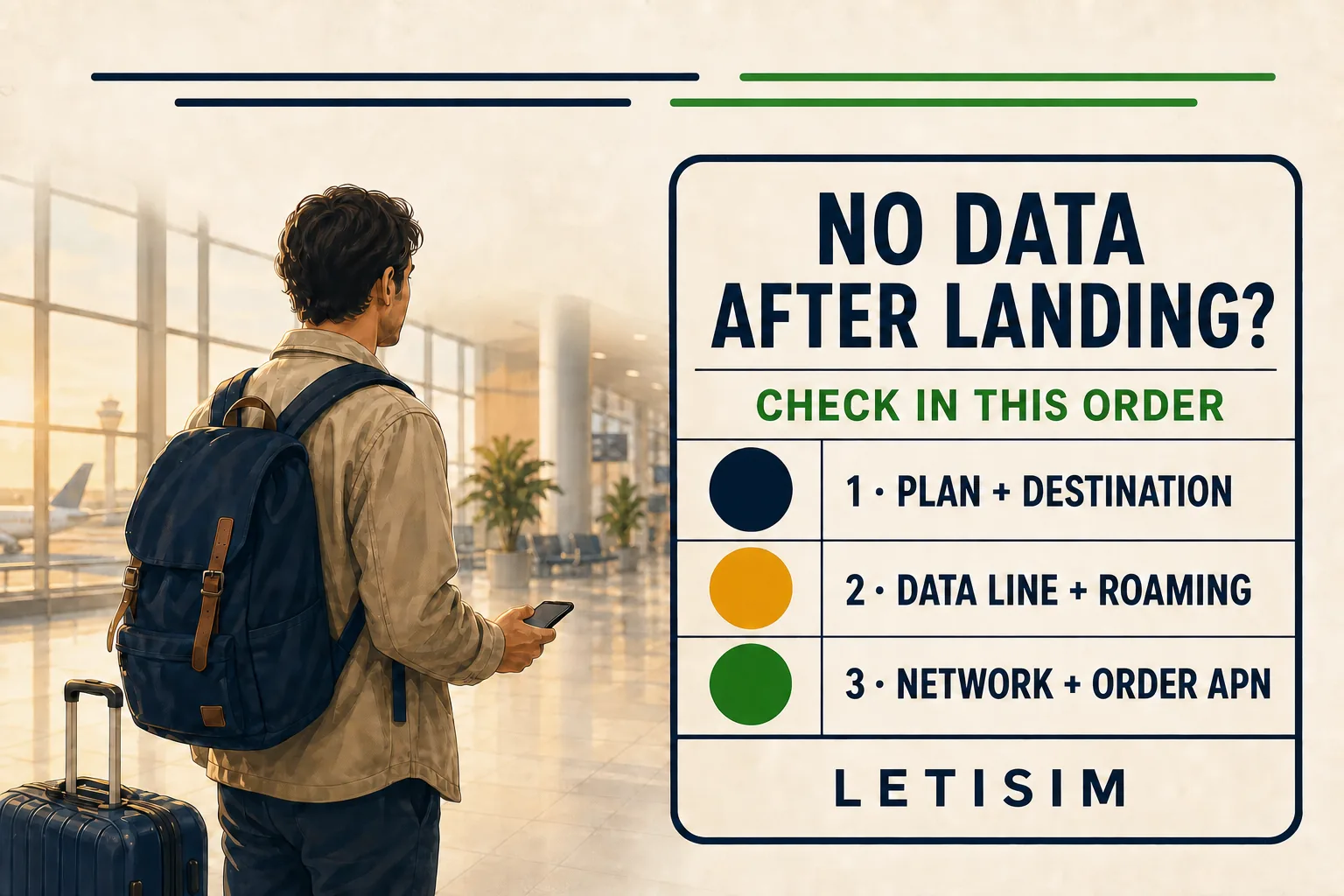
If an installed travel eSIM has no data after arrival, first confirm the destination and plan state, select that eSIM for mobile data, and enable data roaming on the travel line only. Refresh the network, then use the APN or network named in the order; do not delete the eSIM as a first step.
First separate a plan problem from a phone-setting problem
Connect to trusted Wi-Fi and open the Letisim order. Confirm that the destination is included, the plan is not exhausted or outside its stated validity, and any activation instruction shown in the order has been completed. An installed profile can still have no usable data when the plan is not yet active, has ended or does not cover the place where the phone is trying to connect.
Match the symptom before changing settings
A symptom-led check that protects the home line while separating phone settings from plan or network issues.
01
First separate a plan problem from a phone-setting problem
- Connect to trusted Wi-Fi and open the Letisim order.
02
Make the travel eSIM the actual data line
- On iPhone, open Settings → Cellular (or Mobile Data) → Cellular Data and choose the travel eSIM.
03
Refresh network registration before changing advanced settings
- Leave network selection on Automatic unless the Letisim order names a supported network.
If an installed travel eSIM has no data after arrival, first confirm the destination and plan state, select that eSIM for mobile data, and enable data roaming on the travel line only. Refresh the network, then use the APN or network named in the order; do not delete the eSIM as a first step.
Make the travel eSIM the actual data line
On iPhone, open Settings → Cellular (or Mobile Data) → Cellular Data and choose the travel eSIM. Apple documents this manual data-line choice for travel. On Pixel, open Settings → Network & internet → SIMs, turn the travel line on and make sure mobile data uses it. Labels can differ on other Android phones, so search Settings for “SIM” or “mobile data.” [apple-travel] [google-network]
If both lines remain active, disable data roaming on the home SIM before testing. Enable data roaming only inside the travel eSIM’s settings when the order requires roaming. This distinction matters: turning roaming off everywhere can block the travel line, while leaving it on for the home line can create charges from the home carrier. [apple-roaming] [apple-travel]
Refresh network registration before changing advanced settings
Turn Wi-Fi off for the test, confirm airplane mode is off, then switch airplane mode on and off once or restart the phone. Wait for a mobile-network indicator and test a simple web page. Google’s Pixel guidance places airplane mode, network settings and system updates among the first connection checks. [google-network]
Leave network selection on Automatic unless the Letisim order names a supported network. If it does, try that network manually and return to Automatic if registration fails. Signal bars without a loading page point to a different branch than “No Service”: the former makes the data line, plan state or APN more relevant; the latter makes network registration or coverage more relevant. [google-network]
Use the exact APN, then send evidence instead of deleting the eSIM
Change an APN only when the order or Letisim support provides the exact value. Do not copy an APN from another eSIM guide: it can belong to a different profile. After saving the instructed APN, toggle airplane mode once and test again with Wi-Fi off. [google-network]
Collect this evidence if data still fails
Use the exact APN, then send evidence instead of deleting the eSIM
- If data still fails, contact support with the order number, destination, phone model and OS version, the exact status-bar message, whether signal bars appear, and screenshots of the selected data line, roaming and APN screens.
- Never send the QR code or activation code in a public message.
- Support can then distinguish settings, plan state and network availability without asking you to erase the profile.
Letisim · Live catalog · current options
Current Letisim plans
Prices and availability load from the live catalog. Verify final details before purchase.
- Data, duration and price — all on one screen.
- Your QR code and setup guide work offline — even at the airport with no signal
- See the final price before you pay
Sources
Updated: 2026-08-06
- Use eSIM while traveling internationally with your iPhone — Apple Support · 2026-08-06
- About cellular data roaming options for your iPhone and iPad — Apple Support · 2026-08-06
- Connect to mobile networks on a Pixel phone — Google Pixel Help · 2026-08-06