Keep your home number while using a travel eSIM: a safe Dual SIM setup
Give each line one job: the travel eSIM carries data, while the home line stays available only for the calls or messages you actually need.
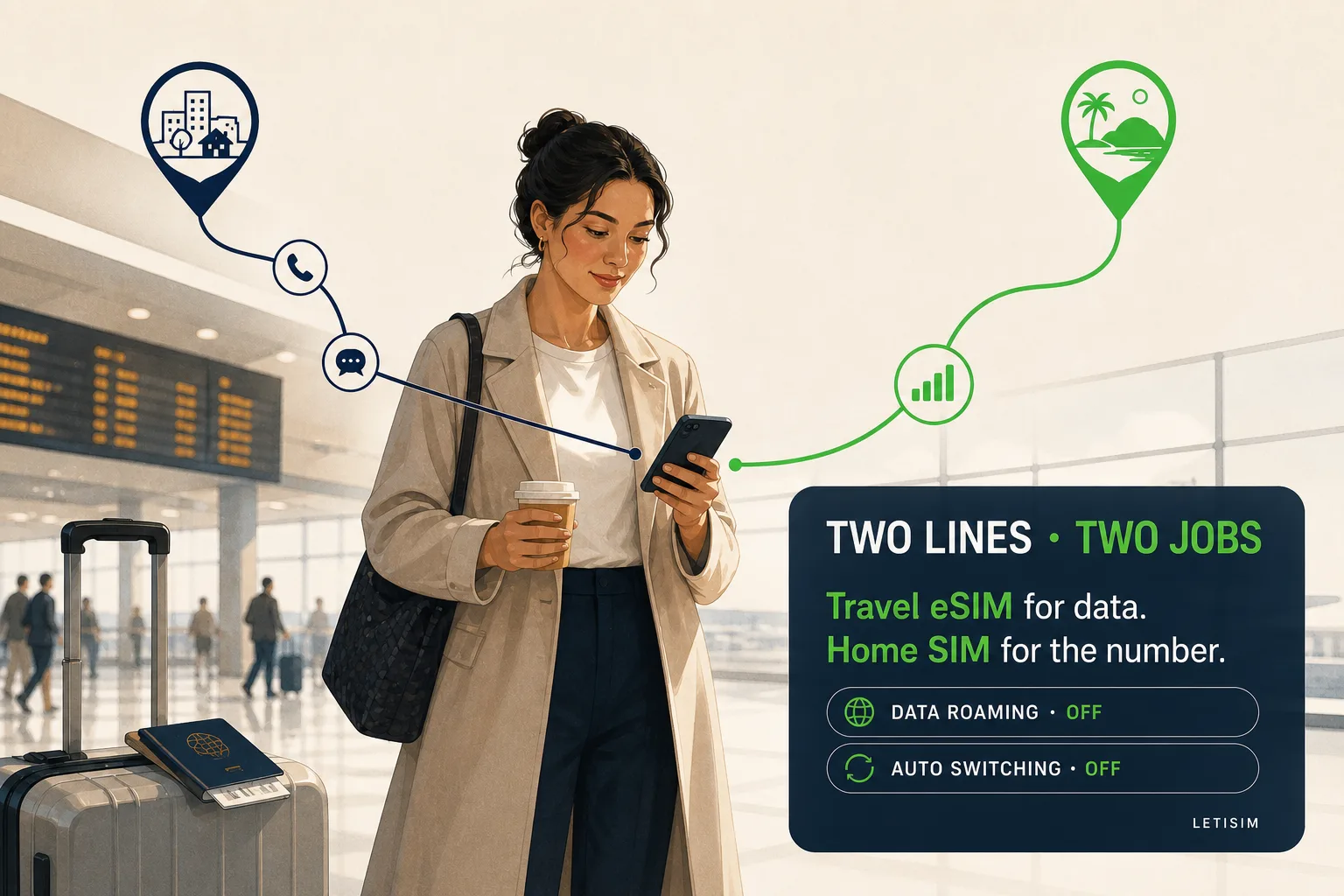
On a compatible Dual SIM phone, keep the home line on only if you need calls or SMS, choose the travel eSIM for mobile data, turn data roaming off on the home line, and disable automatic data switching. Keeping the number reachable does not make roaming calls, voicemail, SMS or Wi-Fi Calling free or guaranteed—confirm those terms with the home carrier.
A travel eSIM does not take over your home number
A data travel eSIM adds a second mobile plan. It does not port, cancel or copy the phone number attached to your home SIM. On supported iPhones, Apple says two lines can remain active while only one cellular data network is used at a time; Pixel phones similarly let you choose a SIM for data, calls and messages. [apple-dual-sim] [google-dual-sim]
That distinction prevents the common mistake of expecting the travel eSIM to receive bank texts sent to the home number. Those calls and SMS still depend on the home line registering abroad, the home carrier's roaming rules and the sender's delivery path. Keep the line active only when that reachability is worth the carrier risk. [apple-travel]
Assign one job to each connection
Use this board before touching individual toggles.
DATA
Travel eSIM
- Selected for mobile data
- Roaming enabled only if the order requires it
- Maps, browser and internet apps use this allowance
NUMBER
Home SIM
- Kept on only for carrier calls or SMS
- Data roaming switched off
- Charges and reachability follow the home carrier
INTERNET
Messaging apps
- Use the travel eSIM's data
- Usually keep the existing account identity
- Re-verification can still require access to the home number
Labels such as Primary, Personal and Travel are only names. Verify the selected data line, not the label color.
Safe iPhone setup before departure
In Settings → Cellular or Mobile Data, label the plans clearly. Open Cellular Data and select the travel eSIM. For the conservative setup, turn off Allow Cellular Data Switching so iPhone does not move data to the home line when conditions change. [apple-dual-sim]
Open the home line and turn Data Roaming off. Open the travel line separately and follow the roaming instruction in the Letisim order. Apple explicitly warns that keeping both lines on can still incur roaming fees on the home line, so data routing is only one part of the safety check. [apple-travel] [apple-roaming]
Safe Android and Pixel setup
On Pixel, go to Settings → Network & internet → SIMs and select the travel eSIM for mobile data; keep calls and SMS on the home SIM or choose Ask every time. Samsung and other Android names differ, so search Settings for SIM manager, mobile data or preferred SIMs rather than copying an exact path from another model. [google-dual-sim]
Turn roaming off inside the home line. If the phone offers automatic or backup data switching, leave it off for the first trip unless you deliberately accept the home carrier's terms. Turn roaming on inside the travel eSIM only when the order says it is required for that plan. [google-dual-sim] [apple-roaming]
Five-minute check before the flight
Complete this while trusted Wi-Fi and carrier support are still easy to reach.
- Install the travel eSIM without deleting the home SIM.
- Rename both lines so their roles are unmistakable.
- Select the travel eSIM for mobile data and disable automatic data switching.
- Turn data roaming off on the home line.
- Read the Letisim order for the travel line's activation and roaming instruction.
- Ask the home carrier about calls, SMS, voicemail and Wi-Fi Calling abroad.
- Save offline access to the order and support details; never share the QR code publicly.
After landing: verify the route before using the phone
Do not assume the status-bar label proves which line is carrying data.
- Turn the travel line on when the order says to activate it.
- Confirm the travel eSIM is still the selected mobile-data line.
- Keep roaming off on the home line and apply the order's rule to the travel line.
- Switch Wi-Fi off briefly and open a simple page to test mobile data.
- Before answering a carrier call or sending an SMS, decide whether the home-carrier charge is acceptable.
What happens to calls, SMS, OTPs and messaging apps
Carrier calls and SMS to the usual number stay with the home line. A data-only travel eSIM does not become that number. Wi-Fi Calling may let a supported home line use Wi-Fi or, on some devices and carriers, the other line's data, but device support, carrier support and fees all matter. [apple-dual-sim] [google-dual-sim]
WhatsApp, Signal, Telegram, FaceTime and similar services use internet data after they are already configured, so normal app traffic can travel over the travel eSIM. That does not promise permanent account access: a logout, device change or security check can request a new code on the original number. [apple-travel]
Letisim · Live catalog · current options
Current Letisim plans
Prices and availability load from the live catalog. Verify final details before purchase.
- Data, duration and price — all on one screen.
- Your QR code and setup guide work offline — even at the airport with no signal
- See the final price before you pay
Sources
Updated: 2026-08-06
- Use eSIM while traveling internationally with your iPhone — Apple Support · 2026-08-06
- Using Dual SIM with an eSIM — Apple Support · 2026-08-06
- About cellular data roaming options for your iPhone and iPad — Apple Support · 2026-08-06
- How to use dual SIMs on your Google Pixel phone — Google Pixel Help · 2026-08-06