LetisimReloadable
VODAFONE5G
DATA1 GB
VALIDITY7 days
VALIDITY STARTS AT FIRST CONNECTIONACTIVATE WITHIN 180 DAYS
$7.00$7.00 · Per GB
Ghana · GH
from $5.84 per GB
Stay online in Ghana with eSIM data for maps, bookings and messages. Compare plans, prices and coverage, then check when your package starts before you connect.
20 GB · 30 days for $116.64. Catalog checked 2026-09-10; confirm the total before paying.
A digital SIM you add to your phone over the internet. No plastic card and no visit to a shop.
Use Letisim for maps, taxis and messages while keeping your usual number.
Check my phoneCalls and texts on your home SIM follow your operator’s rates.
Compare data, duration and when validity begins. A top-up label means more data can be added to that package.
Prices checked 2026-09-10. The live catalog is authoritative at checkout.
Prices checked 2026-09-10. The live catalog is authoritative at checkout.
Open all current plans| Data | Validity | Price | Per GB | Choose plan |
|---|---|---|---|---|
| 1 GBVodafone5GReloadable | 7 daysVALIDITY STARTS AT FIRST CONNECTIONACTIVATE WITHIN 180 DAYS | $7.00 | $7.00 | Choose plan |
| 1 GBReloadable | 30 daysVALIDITY STARTS AT PURCHASE | $24.66 | $24.66 | Choose plan |
| 3 GBVodafone5GReloadable | 15 daysVALIDITY STARTS AT FIRST CONNECTIONACTIVATE WITHIN 180 DAYS | $18.68 | $6.23 | Choose plan |
| 3 GBReloadable | 30 daysVALIDITY STARTS AT PURCHASE | $19.84 | $6.62 | Choose plan |
| 5 GBReloadable | 30 daysVALIDITY STARTS AT PURCHASE | $31.12 | $6.23 | Choose plan |
| 10 GBReloadable | 30 daysVALIDITY STARTS AT PURCHASE | $62.28 | $6.23 | Choose plan |
| 20 GBReloadable | 30 daysVALIDITY STARTS AT PURCHASE | $116.64 | $5.84 | Choose plan |
| 50 GBReloadable | 30 daysVALIDITY STARTS AT PURCHASE | $720.37 | $14.41 | Choose plan |
| 100 GBReloadable | 30 daysVALIDITY STARTS AT PURCHASE | $1,325.51 | $13.26 | Choose plan |
| UnlimitedVodafone5G | 1 dayVALIDITY STARTS AT FIRST CONNECTIONACTIVATE WITHIN 180 DAYS | $16.62 | — | Choose plan |
| UnlimitedVodafone5G | 3 daysVALIDITY STARTS AT FIRST CONNECTIONACTIVATE WITHIN 180 DAYS | $49.86 | — | Choose plan |
| UnlimitedVodafone5G | 7 daysVALIDITY STARTS AT FIRST CONNECTIONACTIVATE WITHIN 180 DAYS | $116.34 | — | Choose plan |
| UnlimitedVodafone5G | 14 daysVALIDITY STARTS AT FIRST CONNECTIONACTIVATE WITHIN 180 DAYS | $232.68 | — | Choose plan |
| UnlimitedVodafone5G | 30 daysVALIDITY STARTS AT FIRST CONNECTIONACTIVATE WITHIN 180 DAYS | $498.60 | — | Choose plan |
Choose an allowance to see what it could cover. Quality, compression and background activity change actual usage.
With 3 GB, approximately…
Example: 5 MB per photo
Example: a 1-minute Full HD clip ≈ 63 MB
HD example: 3 GB per hour
At standard quality: ≈ 4 hr 17 min
1:1 at 720p: ≈ 1.08 GB per hour
Each result uses the whole allowance for that one activity. The results do not add up: maps, messages and other apps share the same data.
Taking photos or recording video on your phone does not itself use mobile data. Sending, watching or backing them up over the mobile network does.
| Data | Photos · 5 MB | 1-minute clips · 63 MB | HD video · 3 GB/hr | Standard video · 0.7 GB/hr | Video calls · 720p |
|---|---|---|---|---|---|
| 1 GB | ≈ 200 photos | ≈ 15 clips | ≈ 20 min | ≈ 1 hr 25 min | ≈ 55 min |
| 3 GB | ≈ 600 photos | ≈ 47 clips | ≈ 1 hr | ≈ 4 hr 17 min | ≈ 2 hr 46 min |
| 5 GB | ≈ 1,000 photos | ≈ 79 clips | ≈ 1 hr 40 min | ≈ 7 hr 8 min | ≈ 4 hr 37 min |
| 10 GB | ≈ 2,000 photos | ≈ 158 clips | ≈ 3 hr 20 min | ≈ 14 hr 17 min | ≈ 9 hr 15 min |
| 20 GB | ≈ 4,000 photos | ≈ 317 clips | ≈ 6 hr 40 min | ≈ 28 hr 34 min | ≈ 18 hr 31 min |
Planning examples, not guaranteed totals. We use 1 GB = 1,000 MB, round down complete files and minutes, and exclude overhead, retries and background traffic.
Sources checked 2026-09-08
Start with your usual usage. Download maps, your accommodation address and bookings before departure.
Allow extra data if Wi-Fi will be limited. Check whether your phone backs up photos and videos over mobile data.
Check recent data use on your phone and the package’s hotspot rules. Budget separately for video calls and large downloads.
03 / Installation
Your first eSIM? Here is what to open and what to tap.
Check the exact model, regional variant and system version. If Add eSIM or EID is missing, contact support before buying. A brand name alone does not confirm compatibility.
Manufacturer’s instructions · iPhone ↗
Manufacturer’s instructions · Google Pixel / Android ↗
Manufacturer’s instructions · Samsung ↗
Manufacturer’s instructions · Huawei ↗
Manufacturer’s instructions · Honor ↗
Manufacturer’s instructions · Xiaomi / Redmi ↗
Manufacturer’s instructions · Motorola ↗
Manufacturer’s instructions · OPPO ↗
Manufacturer’s instructions · OnePlus ↗
On iOS 26, a Turn On Travel eSIM notification may appear after arrival. Choose the travel line for data and check whether you also want to keep your home line active. If no notification appears, use the manual steps below.
Check when your package starts: at payment, installation or first connection. If it starts on installation, install nearer your trip. Installing later does not postpone a package that started at payment.
These screens show settings on the models named below. Your operator and eSIM labels will differ. Screens retain the source language; each caption translates and identifies the control to use. Tap any image for a closer look.
iPhone 17 · iOS 26 · Screen source ↗
Use a stable Wi-Fi connection or hotspot. Your exact phone model must support eSIM and be unlocked for other operators.
Connect the phone you will use for your eSIM to Wi-Fi. Choose one of the two options below. If this eSIM is already installed, skip to choosing the line for mobile data.
You can add the eSIM by scanning its QR code in Settings. Follow the path below, choose the QR scanner and use the code for your own purchase. If the QR is on this same phone, see the options without a second screen below the guide.
iPhone: Settings → Mobile Service / Cellular → Add eSIM → Use QR Code → Scan QR Code → Continue
Google Pixel / Android: Settings → Network and Internet → SIMs → Add SIM → Set up an eSIM → scan your QR → Set up
Samsung: Settings → Connections → SIM manager → Add eSIM → Scan QR code → Add → Next
Huawei: Settings → Mobile network → SIM management → SIM 2 → Add eSIM → Add eSIM → Scan code → Add this eSIM
Honor: Settings → Mobile network → SIM management → Add eSIM → Add eSIM or transfer from your device → Set up an eSIM → Set up
Xiaomi / Redmi: Settings → Mobile networks → Use eSIM → Manage eSIM → Add eSIM → Add eSIM → scan your QR → confirm download
Motorola: Settings → Network & Internet → SIMs & mobile network → Download new SIM → Set up an eSIM → scan your QR → Set up
OPPO: Settings → Mobile network → SIM & eSIM settings → Add eSIM → Set up an eSIM → scan your QR → Set up
OnePlus: Settings → Mobile network → eSIM → Add eSIM → Add eSIM → Next → scan your QR → Set up
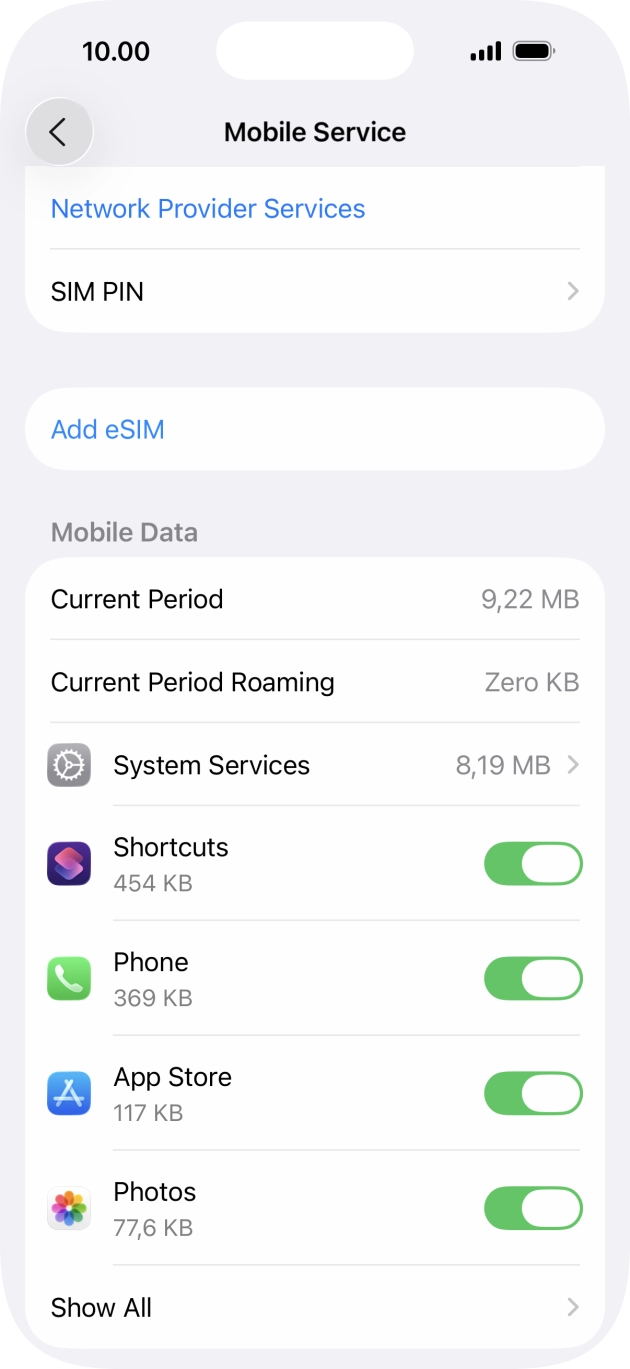 Enlarge screen ↗
The install button or your QR code opens the phone’s system setup. Confirm that you want to add the eSIM, then stay connected to Wi-Fi until the profile finishes downloading. If the phone first asks how to add an eSIM, use your QR code. You do not need to transfer your home SIM from another phone.
Continue / Add / Install / Set up → wait for the eSIM to download
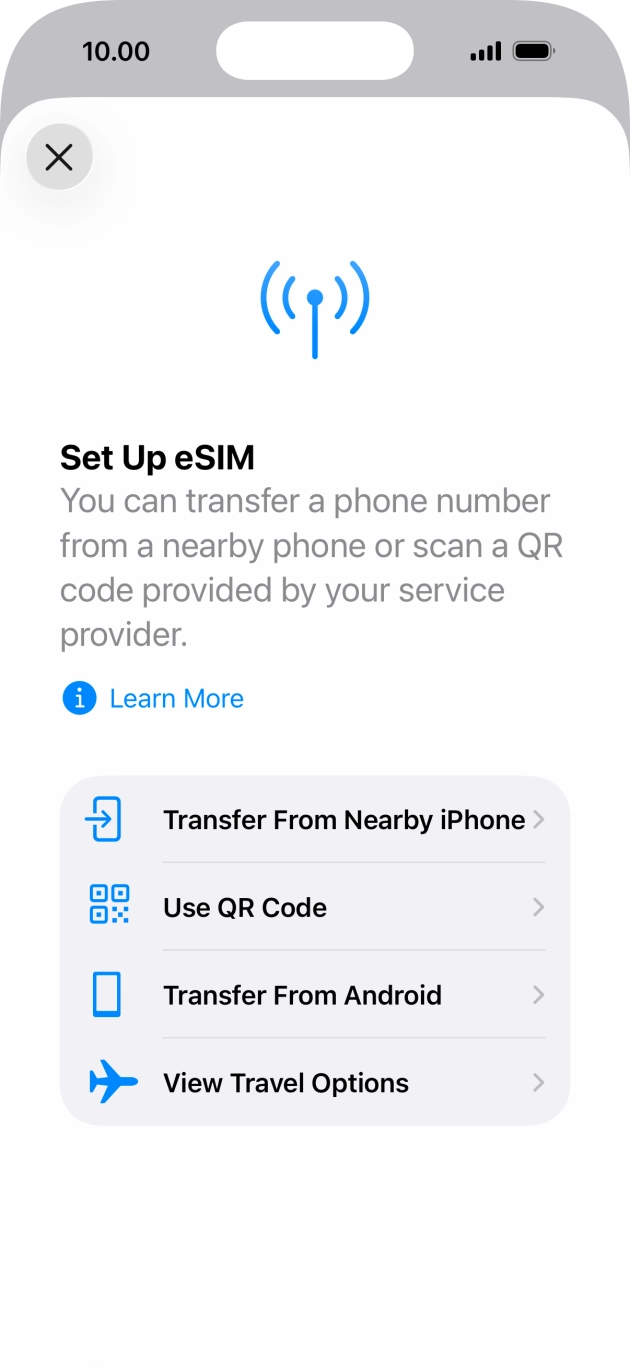 Enlarge screen ↗
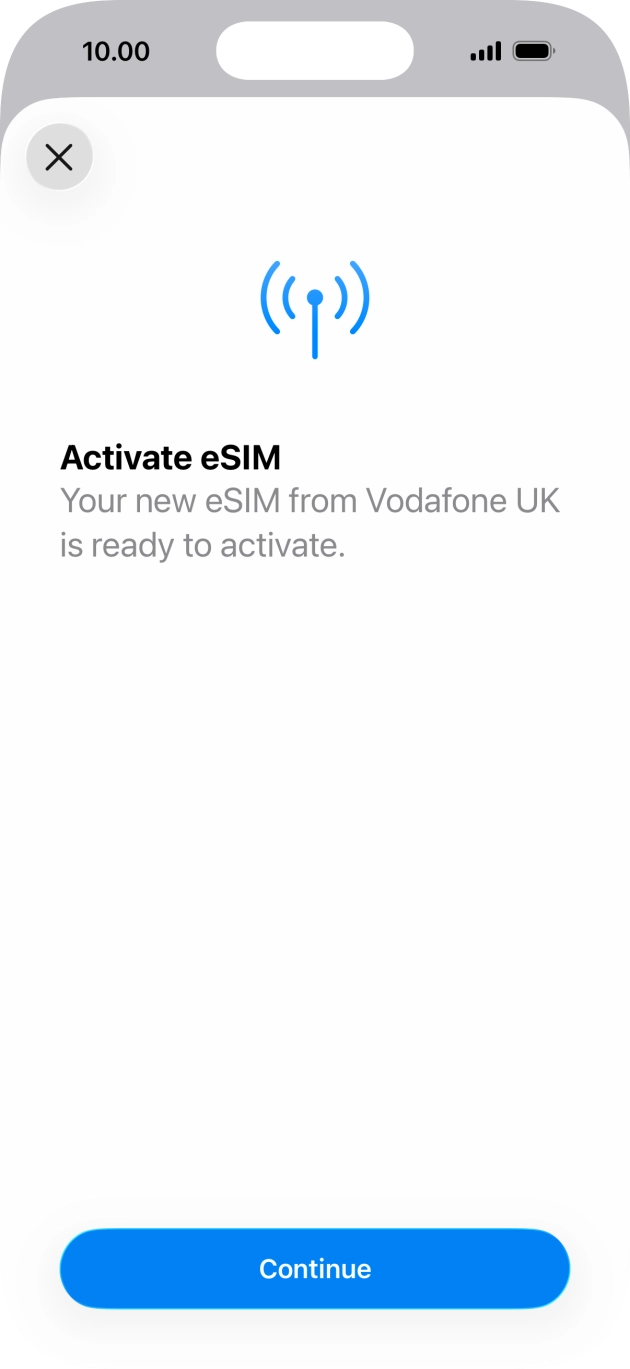 Enlarge screen ↗
For example, “Letisim Ghana”, so you can distinguish it from your home SIM. This is a label on your phone; it does not change the number or plan.
iPhone: Settings → Cellular / Mobile Service → new eSIM → Cellular Plan Label → Custom
Google Pixel / Android: Settings → Network & internet → SIMs → new eSIM → Edit name
Samsung: Settings → Connections → SIM manager → new eSIM → Name
Huawei: SIM management → SIM 2 → your eSIM → Card name. You can keep the existing label if no rename option is shown.
Honor: SIM management → SIM 2 → eSIM name. Rename it if your MagicOS version offers this option.
Xiaomi / Redmi: Manage eSIM → your plan → Change nickname, if available.
Motorola: Open the new eSIM in SIM settings and use the edit-name option if available.
OPPO: Open the installed profile in eSIM settings and change its label if your ColorOS version allows it.
OnePlus: Open the installed eSIM and edit its name if the option is available.
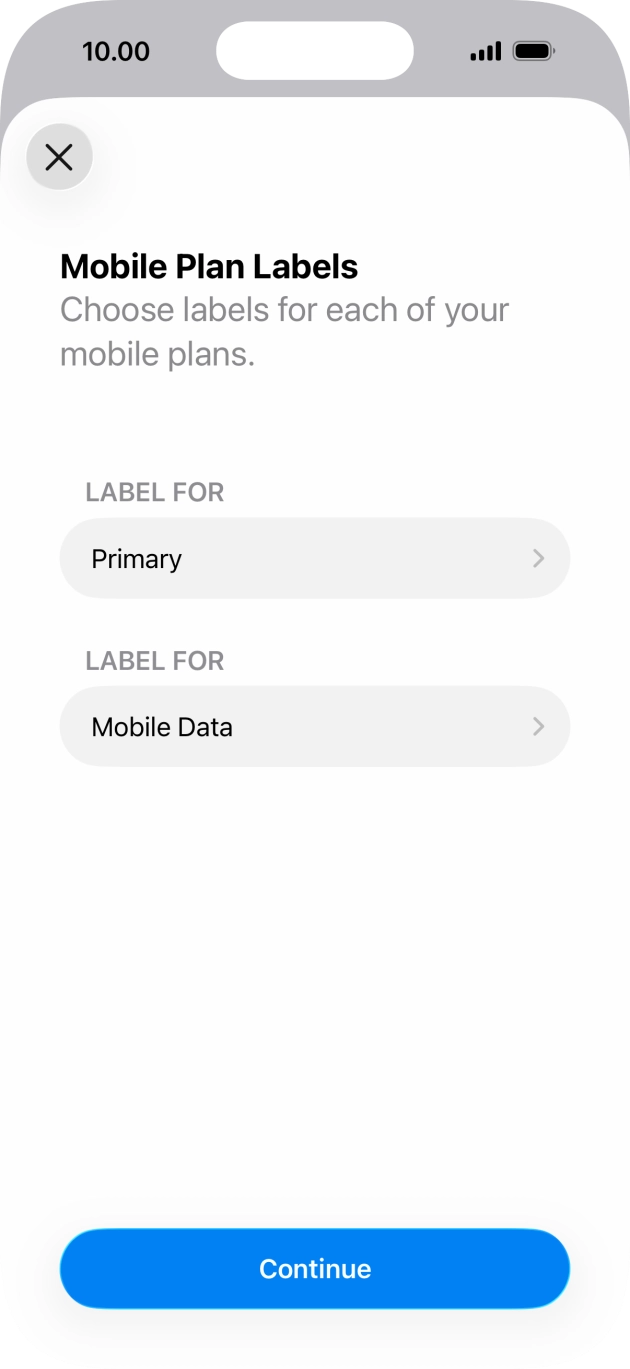 Enlarge screen ↗
Installation adds the eSIM to your phone. Choose it for mobile data at your destination. Package validity still follows its own start rule.
Turn on the new line and select it for mobile data. You can keep your home SIM for calls and texts at its usual rates. Turn off automatic mobile-data switching between SIMs.
iPhone: Settings → Cellular / Mobile Service → Cellular Data → Letisim. Turn off “Allow Cellular Data Switching”.
Google Pixel / Android: Settings → Network & internet → SIMs → Mobile data → Letisim
Samsung: Settings → Connections → SIM manager → Mobile data → Letisim
Huawei: In SIM management, enable the travel eSIM and select it as the default mobile-data SIM. Adding it may disable a physical SIM in slot 2.
Honor: In SIM management, enable the eSIM and choose it for mobile data. Check which physical SIM remains active.
Xiaomi / Redmi: Enable the travel plan in Manage eSIM, then select it for mobile data. Some models use eSIM instead of physical SIM 2.
Motorola: Network & internet → SIM settings: enable the travel eSIM and select it for mobile data.
OPPO: Enable the profile in Mobile network → eSIM, then select it for mobile data. The eSIM may occupy the SIM 2 position.
OnePlus: In Mobile network, enable the travel eSIM and choose it for mobile data. Turn off automatic switching to the other SIM.
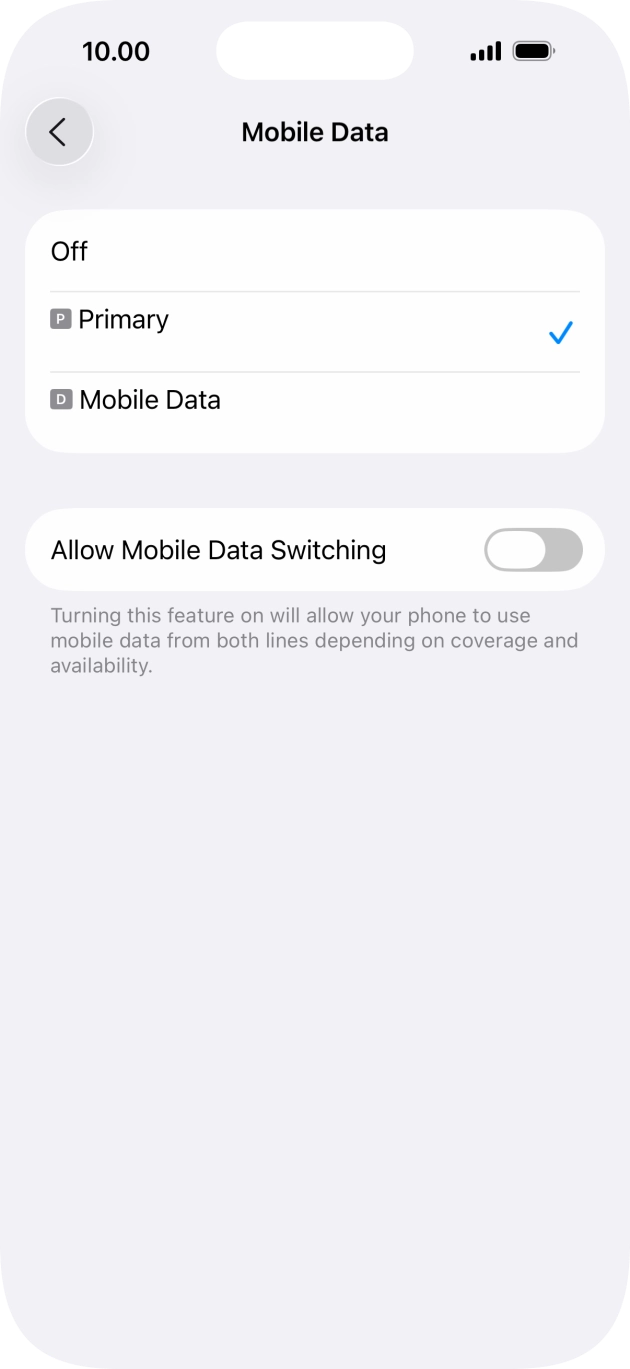 Enlarge screen ↗
If your eSIM instructions require data roaming, enable it for the Letisim line. Keep data roaming off on your home SIM. If an APN is specified, use the exact value in your own package’s guide.
iPhone: Settings → Cellular / Mobile Service → Letisim → Data Roaming (sometimes under Cellular Data Options)
Google Pixel / Android: Settings → Network & internet → SIMs → Letisim → Roaming
Samsung: First select Letisim for mobile data, then Settings → Connections → Mobile networks → Data roaming
Huawei: Open Mobile network → Mobile data and check data roaming for the travel SIM. Follow the settings in your package guide.
Honor: In the mobile-network settings, open the travel SIM’s data settings and enable roaming only if your package requires it.
Xiaomi / Redmi: In Mobile networks, open the travel SIM’s data-roaming settings. Use the roaming and APN values from your package guide.
Motorola: Open the travel eSIM’s network settings and check Roaming against your package instructions.
OPPO: Open the travel SIM’s mobile-network settings and enable data roaming if required by your package.
OnePlus: Open the travel SIM’s settings and check Data roaming against the instructions for your own package.
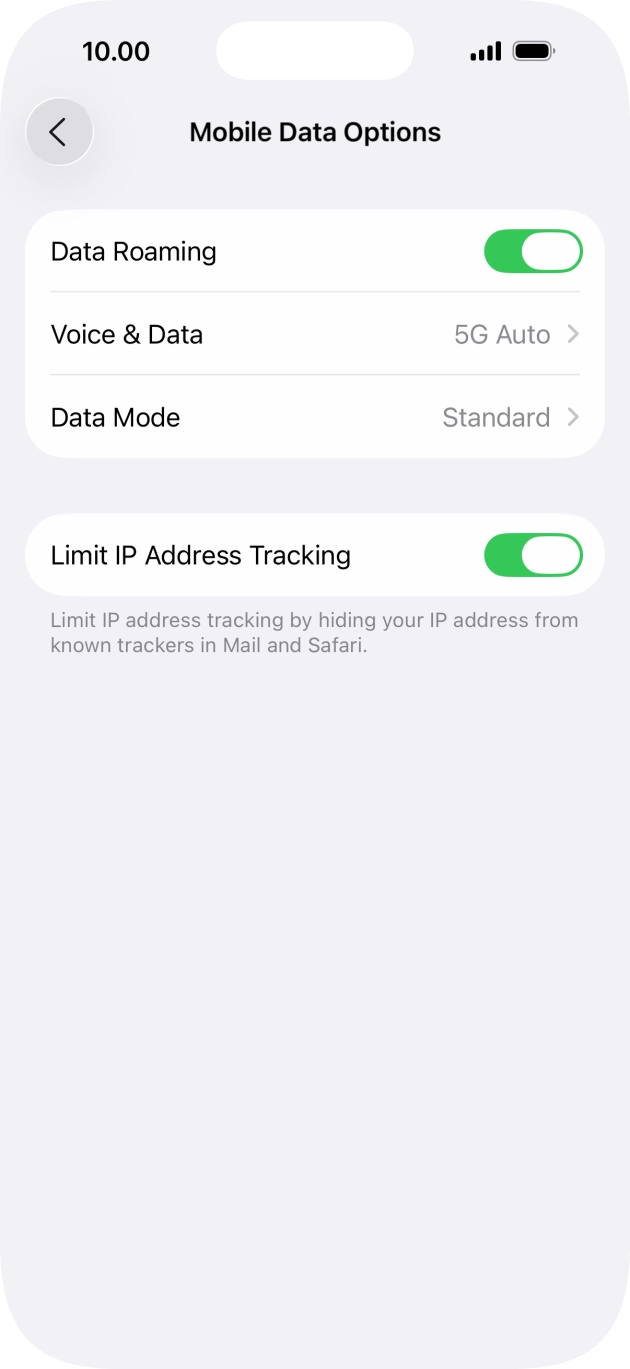 Enlarge screen ↗
Turn off Wi-Fi and open a map or website. If it loads, mobile data is working. If it does not, turn airplane mode on for about 30 seconds, turn it off and wait for a connection. Recheck the selected line and package settings.
Wi-Fi off → website loads → you are connected
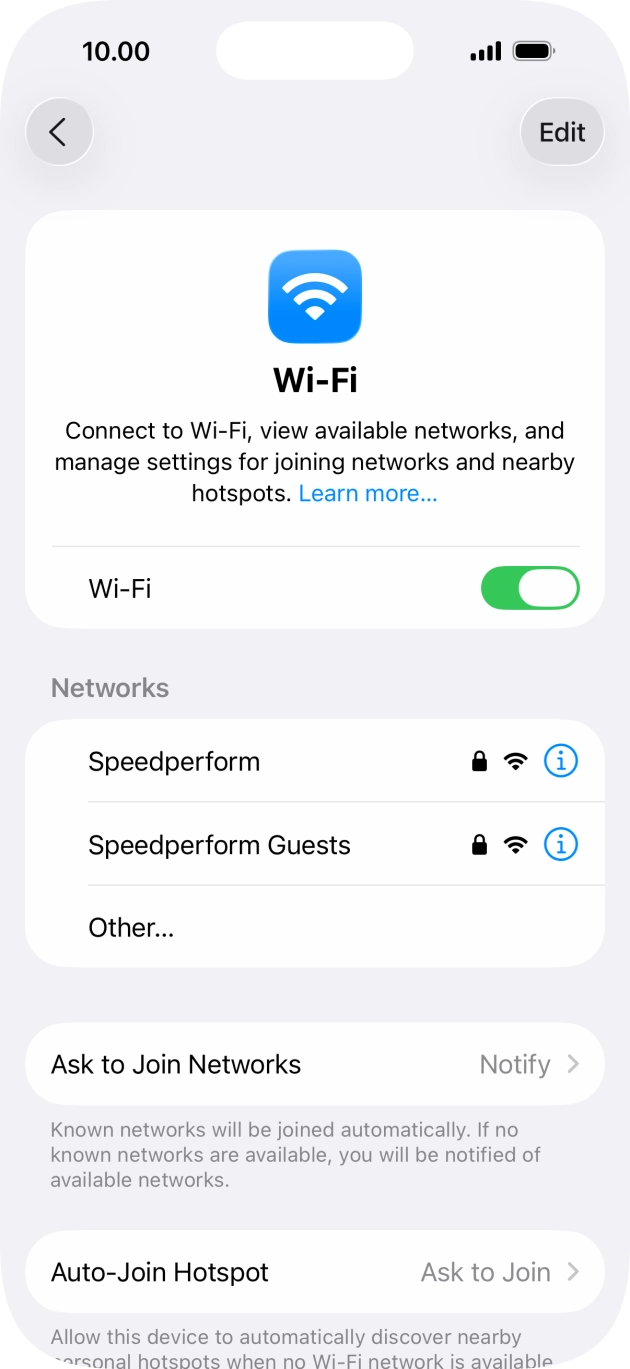 Enlarge screen ↗
If the scanner has a gallery button, save the QR from your order and choose that image. If your order includes manual installation details, choose Enter details manually and copy the fields exactly. The available methods depend on your phone and eSIM. If neither is available, contact support; do not scan a sample code from this guide or delete an installed eSIM.
Menu names can differ by phone model and system version.
04 / Operators
Compare network coverage separately from speed. A national result does not predict reception inside your hotel or along a mountain road.
Ghana’s regulator lists MTN, Telecel and AT as national mobile operators. For a trip, compare the package network and check the places where you will actually use mobile data first: airport, hotel and main route.
The official site and help center confirm the operator and support channels, but these sources do not provide a public mobile coverage map. [1] [2] [5]
Official website ↗The available Telecel source is a broadband geo-locator, not a public mobile coverage map. Check mobile service details with the operator before you rely on it for a specific stop. [1] [3]
Official website ↗AT’s official profile confirms the operator in Ghana, but no public mobile coverage map is provided in these sources. [1] [4]
Official website ↗The network in your chosen package is what matters. This country comparison does not mean every plan includes every operator. 5G depends on the package, phone and local coverage.
05 / Coverage
Check the addresses and roads you will actually use. Save maps and booking details before leaving Wi-Fi.
This is the easiest area to complete setup, test your eSIM and save offline maps before longer road trips. Check the exact hotel or pickup point you will use on day one. [7]
For beach stays and short coastal drives, keep booking details and maps saved on the phone before you leave central Accra. That makes transfers and last-minute route changes easier. [7]
For heritage sites and park visits, download your map and key confirmations before leaving the capital area. Mobile data is most useful here for navigation, messaging and coordinating transport between stops. [6] [8]
Day trips inland are smoother when your maps, chats and tickets are already ready on the phone. Keep an offline map for turns, viewpoints and short stops on the way. [9]
Ghana · eSIM
Ghana’s regulator lists three national mobile operators: MTN Ghana, Telecel Ghana and AT Ghana. That matters when you compare travel eSIM packages, because the network partner affects how you plan for arrival, city use and intercity travel. For most visitors, the practical question is not a countrywide slogan but the exact places that matter first: the airport pickup, your hotel, a coastal stop or the road segment before the next town. Operator pages confirm current service information, and offline maps give you a sensible backup for transfers and day trips.
Before you buy, check when the package validity begins. Some eSIM packages start on first connection, while others start at purchase, so installation timing should follow the package details rather than a blanket rule. Many travellers install on reliable Wi-Fi, save the QR code and then enable the line when the package is meant to start. If your route includes Accra, the coast or inland stops such as Boti Falls and Kakum, choose your traffic allowance by navigation, messaging, bookings and trip length rather than by distance alone.
Official Ghana Tourism Authority app for finding attractions, facilities, accommodation, food and other travel services in Ghana. [6] [10]
Useful for navigation, place search and downloading offline maps before intercity trips or day excursions. [11]
Some eSIM packages start validity on first connection, while others start at purchase. Install and enable your Ghana eSIM according to the package details, and keep the QR code saved until setup is complete. [12]
For travel days, the important places are usually your airport pickup, hotel, coastal stop or road transfer. Before leaving a large town, download an offline map and save booking details so you still have the essentials on the phone. [6] [7] [8] [9] [11]
06 / FAQ
Ghana’s regulator lists three national mobile operators: MTN, Telecel and AT. When you compare a travel eSIM, check both the package network and the places where you expect to use mobile data first, such as the airport, hotel and main travel route. [1]
No. The network partner can vary by package, and an operator shown in the catalog does not mean every package includes it. Before you buy, check the package screen for the network and the current terms of that specific offer. [12]
It depends on the package start rule. If validity starts on first connection, you can usually install earlier and enable it later. If validity starts at purchase, it is safer to time installation and activation around your trip. The package screen is the final reference. [12]
There is no single operator that can be promised as best for every route from these public sources alone. A practical approach is to match the package network to your first-night stop, key road segments and planned excursions, and keep offline maps ready as backup. [1] [6] [7] [8] [9] [11]
Yes. Google Maps lets you download offline maps in advance, which is useful for transfers, intercity travel and day trips when you do not want navigation to depend on a live connection the whole time. [11]